
This overview includes general navigation, video guides, and helpful tips to get the most out of your account. Use the clickable table of contents or quick links to jump to specific sections.
Table of contents
- Account portal overview
- Navigation tabs
- Home - Quick overview of your STRATA account
- Positions - Detailed view of assets
- Activity - Detailed view of account transactions (deposits, fees, value changes)
- Statements & Documents - Account-related documents (statements, IRS forms, RMD reminders, and notices)
- Account Groups - Customizable account grouping for easy organization of multiple accounts
Account portal overview
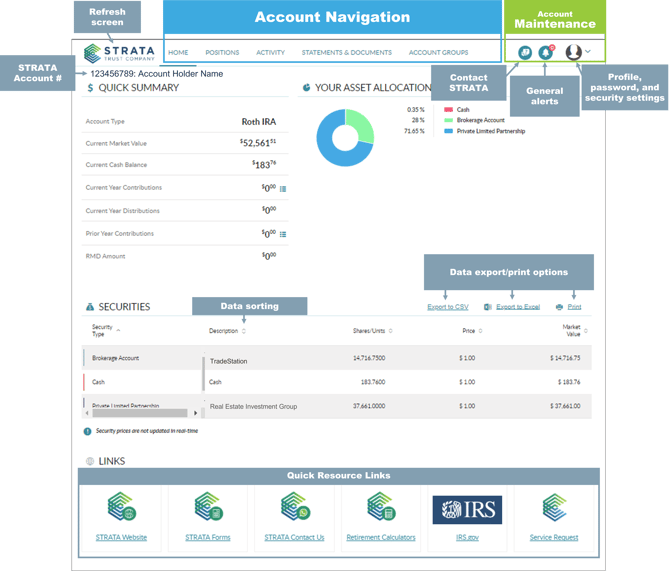
This page provides a high-level view of your account, including balances, investments, and recent activity. From here, you can access statements, update settings, review alerts, and use quick links to common resources. The layout below includes descriptions to help identify the key sections.
Key sections overview:
Navigating your account
Quick Links: Home | Positions | Activity | Statements & Documents | Account Groups
Home
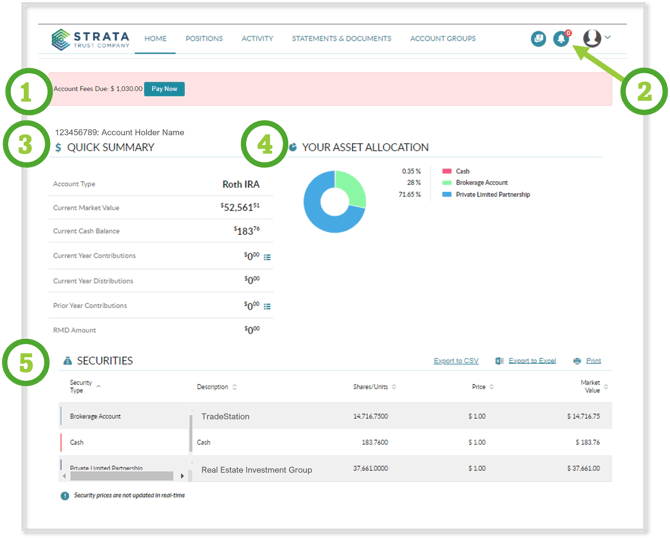
The Home tab provides a quick overview of your account. Personal account alerts are displayed in a banner (1) on the Home page while informational alerts (2) are shown under the alert  icon included in the header of the menu.
Your STRATA account number is shown above the Quick Summary (3) section.
-
The Quick Summary section includes:
- Account Type
- Current market value & current cash balance
- Reportable transactions - Current year and prior year contributions, current year distributions, and RMD amounts (Simply click the
 icon to view additional details regarding these fields.)
- The Asset Allocation (4) section includes a visual chart of your current asset allocation
- The Securities (5) section includes a list of securities held within your account
PRO TIP: Organizing and exporting data
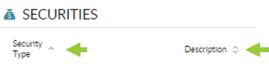
- Sort the listed securities in ascending or descending order by clicking on the up or down arrows next to the column heading.
- Export or print the information in this section by clicking on any of these links:

Quick Links: Home | Positions | Activity | Statements & Documents | Account Groups
Positions
The Positions tab provides a detailed view of the assets currently held within the account.
Video guide:
Step-by-step overview:
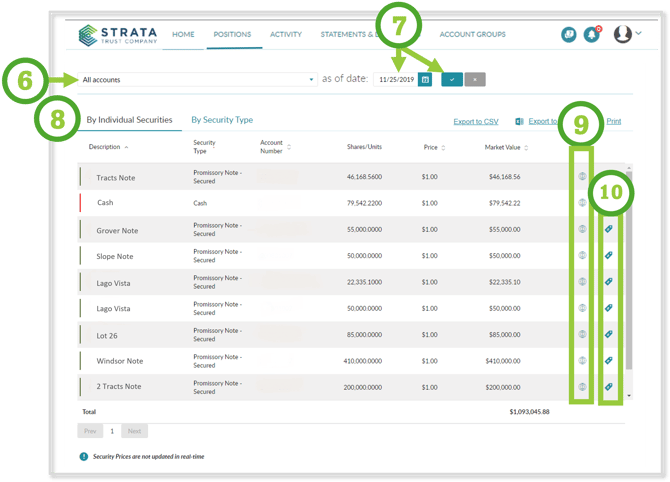
- Filter data by:
- Account (6) - If multiple accounts are listed within the profile, you can sort data by individual accounts or view data for all accounts.
- Date (7) - You can view account information based on the "as of date" entered. Once you have selected your sort parameters, simply click (8)
 to apply the filters.
 - Securities (8)
- Individual securities - Ability to view account securities individually
- Security type - Ability to view account securities by security type grouping
- Asset Location Code - Click the (9)
 icon to view the location code associated with the asset.
 - Asset Price - Click the (10)
 icon to view additional price details associated with the asset.
Quick Links: Home | Positions | Activity | Statements & Documents | Account Groups
Activity
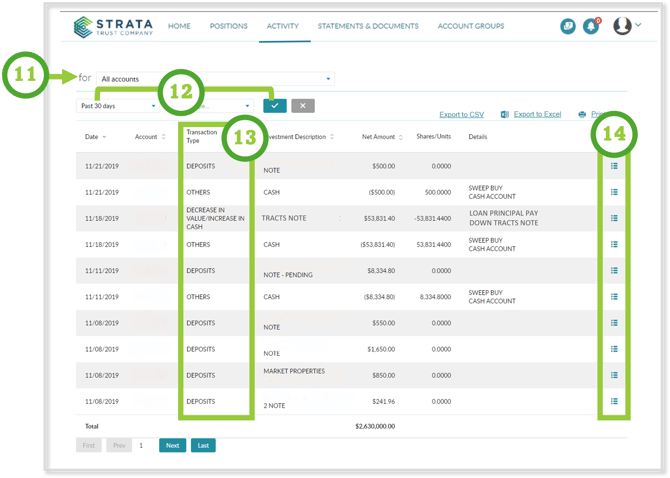
The Activity tab provides a detailed view of account transactions.
Video guide:
Step-by-step overview:
- Filter data by:
- Account (11) - If multiple accounts are listed within the profile, you can sort data by individual accounts or view data for all accounts.
- Date (12) - You can view account information by selecting a date range. Once you have selected your sort parameters, simply click to apply the filters.
- Transaction Type (13) - You can view all transactions or only the transactions selected.
- Transaction Details (14) - Click the
 icon to view additional details associated with the transaction.
PRO TIP: AutoPay
Sign up for Auto Pay to effortlessly process your transactions such as custodial or service fees, annual account fees, asset holding fees, storage fees or processing fees - simply electronically submit STRATA's Fee Payment Authorization form and select Option 1.
Quick Links: Home | Positions | Activity | Statements & Documents | Account Groups
Statements & Documents
The Statements & Documents tab provides a list of all documents available to the user such as STRATA statements, common IRS forms (IRS Form 1099-R, IRS Form 5498), RMD notifications, and reminders. The documents may be sorted, viewed, downloaded, or printed from this tab.
Video guide:
Step-by-step overview
- Filter data by:
- Document Type (15) - View all documents or by document type.
- Account (16) - If multiple accounts are listed within the profile, you can sort data by individual accounts or view data for all accounts.
- Date (16)- View account information by selecting a date range. Once you have selected your sort parameters, simply click
 to apply the filters.
-
Quick View (17) - Click the document name link to preview the document.
-
Download & Print (18) – Click the
 icon to download and print a pdf version of the document.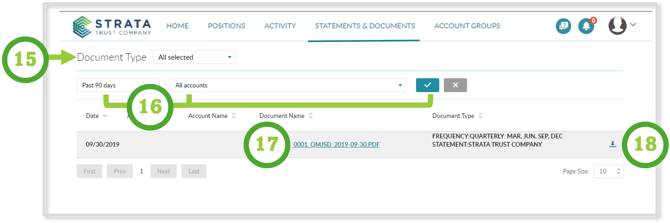
Quick Links: Home | Positions | Activity | Statements & Documents | Account Groups
Account Groups
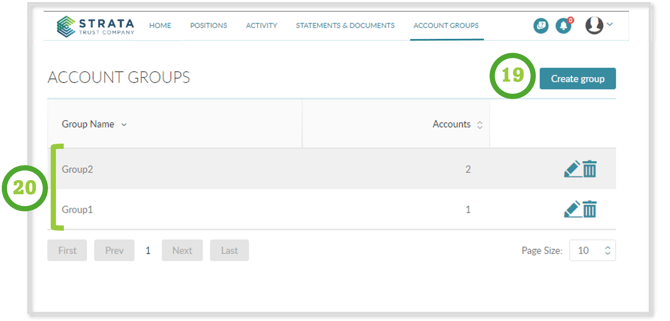
The Account Groups tab allows the user to group accounts as needed. This feature can be used when there are multiple accounts listed within the user profile.
- Create Group - Click the
 button (19). Enter the group name and select accounts that should be added to the newly created group. Click the Save Changes button to add the account group. The account group will appear (20) at refresh or at account log on.
Quick Links: Home | Positions | Activity | Statements & Documents | Account Groups